


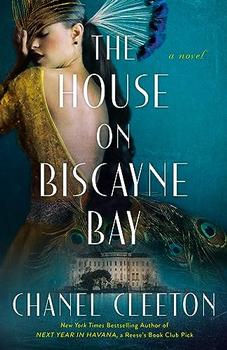
The House on Biscayne Bay
by Chanel Cleeton
As death stalks a gothic mansion in Miami, the lives of two women intertwine as the past and present collide.
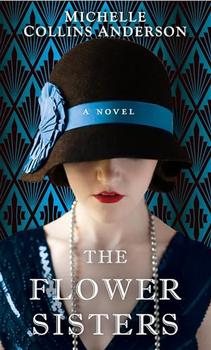
The Flower Sisters
by Michelle Collins Anderson
From the new Fannie Flagg of the Ozarks, a richly-woven story of family, forgiveness, and reinvention.
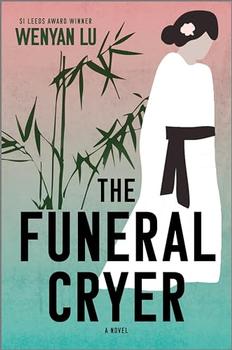
The Funeral Cryer by Wenyan Lu
Debut novelist Wenyan Lu brings us this witty yet profound story about one woman's midlife reawakening in contemporary rural China.
Your guide toexceptional books
BookBrowse seeks out and recommends the best in contemporary fiction and nonfiction—books that not only engage and entertain but also deepen our understanding of ourselves and the world around us.